
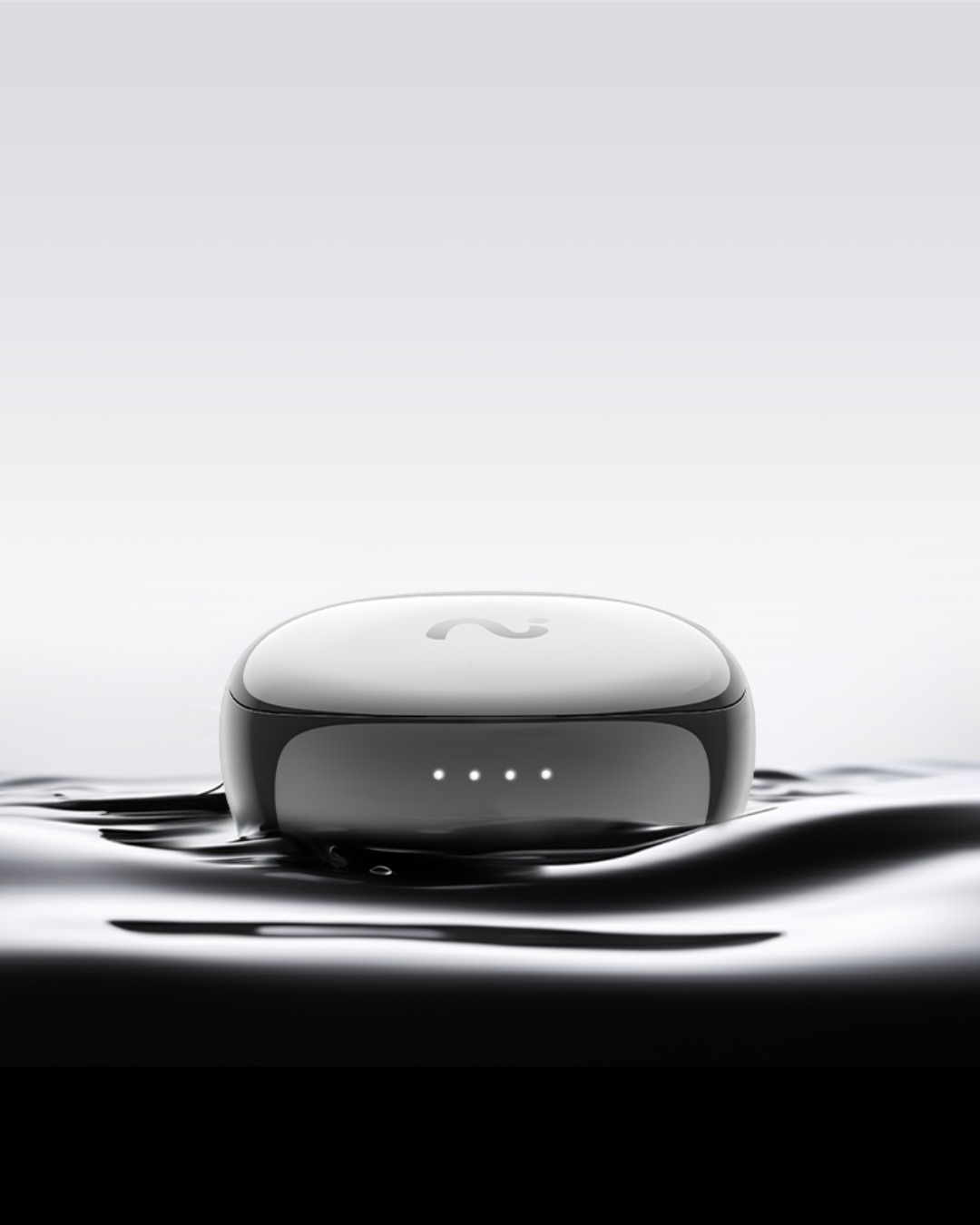


Quick answer — Can you record phone calls on iPhone? Yes. You can record a phone call on an iPhone using the built-in iOS 18 call recording feature (in supported regions), Google Voice (incoming U.S. calls), a third-party call recording app, a speakerphone + external recorder, or AI note-taking earbuds like viaim RecDot that capture both sides of the call and auto-transcribe it.
Which method is best depends on your iOS version, region, carrier and local recording-consent laws. The step-by-step instructions for each option are below.
Recording a phone call on an iPhone can be useful when you need to save an important conversation, interview, meeting discussion, customer call, or personal reminder. But many iPhone users still ask the same question: Can you record phone calls on iPhone?
The short answer is: Yes, you can record phone calls on an iPhone, but the available method depends on your iOS version, region, carrier, app support, and local call recording laws.
Some iPhone users may have access to built-in call recording through Apple’s Phone app, while others may need to use a third-party call recording app, Google Voice, a carrier-supported service, or an external recording device.
Before recording any phone call, always make sure you understand the laws in your location. Some places allow one-party consent, while others require everyone on the call to agree before recording.
Quick Answer: How to Record a Phone Call on iPhone
Here are the main ways to record phone calls on iPhone in 2026:
- Use the built-in iPhone call recording feature if it is available on your device, iOS version, region, and carrier.
- Use a third-party call recording app if built-in recording is not available.
- Use Google Voice for supported incoming calls in certain regions.
- Use a carrier-supported call recording service for business or compliance needs.
- Use an external recorder or AI recording device if you want a hands-free way to capture and review conversations.
If built-in call recording is available, you can usually start recording during a call from the Phone app. If it is not available, you may need another method.
Why iPhone Blocks Call Recording
Apple intentionally limits native call recording for these reasons:
-
Strict Privacy Laws: Wiretapping and consent laws vary globally. By not offering a covert-recording feature, Apple protects users and itself from legal liability.
-
Apple Privacy Philosophy: Apple markets iPhone conversations as private. A built-in stealth recording feature would contradict this promise.
-
App Store Restrictions: Third-party apps cannot access both the iPhone's microphone and the Phone app simultaneously. Most iOS call-recording apps rely on a clunky three-way merge rather than directly tapping the audio stream.
5 Ways to Record Phone Calls on iPhone
1. iOS 18 Native Call Recording (Limited Regions)
Apple finally introduced native call recording in iOS 18, which saves audio and transcriptions directly to the Apple Notes app in select regions.
How to record:
-
Make or receive a phone call on your iPhone.
-
Tap the Audio Wave icon in the top-left corner of your call screen.
-
Wait for the unskippable robot announcement: "This call will be recorded."
-
After the call, open Apple Notes > Call Recordings to access audio and transcription.
Pros: Free, native, no third-party apps.
Cons: Robot announcement disrupts conversation; transcription may require manual corrections; limited to specific regions and languages.
2. Google Voice (Incoming Calls Only, U.S.)
If you are in the U.S., Google Voice lets you record inbound calls for free using your Google Voice number.
How to record:
-
Download and set up a free Google Voice number.
-
Go to Settings > Calls and toggle on Incoming call options.
-
Answer a call on your Google Voice number.
-
Press 4 to start recording (robot voice confirms), and press 4 again to stop.
-
Recordings appear in the Voicemail tab.
Pros: Free, simple if using the Google ecosystem.
Cons: Only works for incoming calls; outbound calls cannot be recorded.
3. Third-Party Call Recording Apps (TapeACall, etc.)
Apps like TapeACall record both inbound and outbound calls via three-way call merging, due to iOS restrictions.
How to record:
-
Download the app and subscribe.
-
Tap Record to dial the app’s recording server.
-
Tap Add Call to dial your contact.
-
Tap Merge Calls to link the server with your conversation.
Pros: Records both sides of the call.
Cons: Clunky, multi-step, risk of hang-ups, privacy concerns since audio routes through third-party servers.
Best Call Recording Apps for iPhone in 2026 (Quick Comparison)
If you go the third-party route, these are the most widely used call recording apps for iPhone in 2026. All rely on iOS three-way call merging, so audio routes through the app’s servers — check pricing and privacy before you commit.
| App | Best for | Records outbound | Pricing |
|---|---|---|---|
| TapeACall | Both inbound & outbound calls | Yes | Paid subscription |
| Rev Call Recorder | Free recording + paid transcription | Yes | Free to record |
| Google Voice | Free inbound U.S. calls | No | Free |
| Automatic Call Recorder (iPhone) | Casual, occasional use | Yes | Freemium |
| viaim RecDot (earbuds, no app merge) | Professionals who want clean two-way audio + AI notes | Yes | One-time hardware |
Bottom line: app-based recorders work, but the three-way-merge workflow is clunky and quality varies. For frequent, professional recording, a dedicated device such as viaim RecDot avoids the merge entirely and captures crystal-clear audio with automatic transcripts.
4. Speakerphone + External Recorder (No App)
For a basic solution, you can record your iPhone call with a secondary device.
Steps:
-
Put your call on Speakerphone.
-
Place an external recorder, tablet, or iPad near the speaker.
-
Start recording.
Pros: No apps, simple setup.
Cons: Poor audio quality, lack of privacy, and manual transcription required.
5. Professional Solution: AI Note-Taking Earbuds (Recommended)

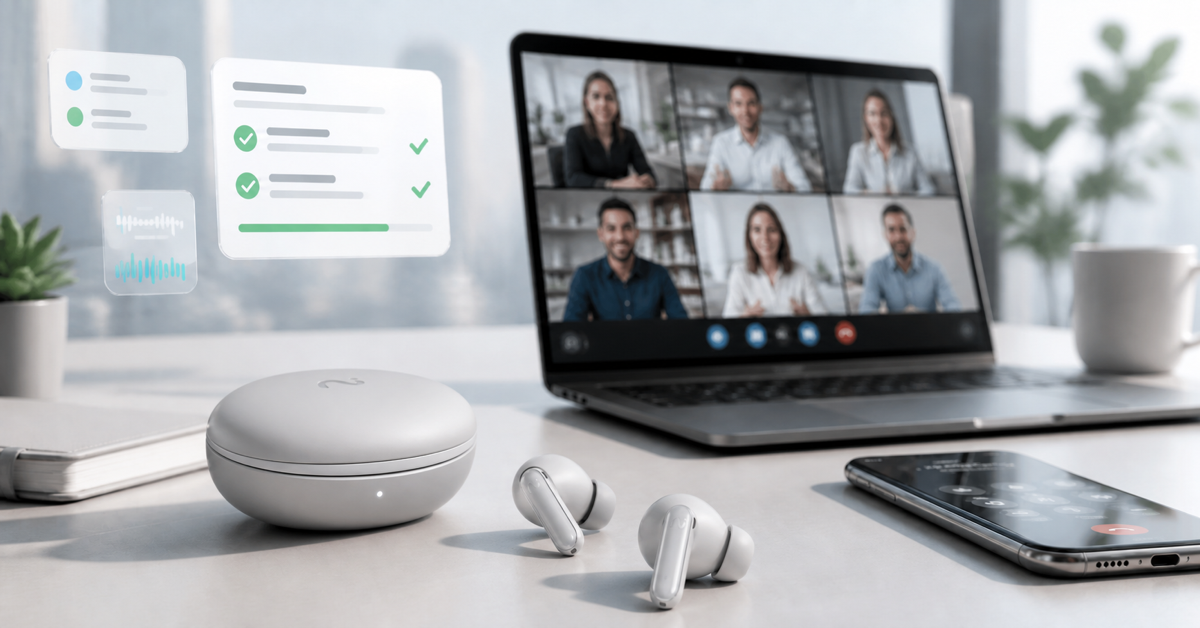
For professionals, AI note-taking earbuds such as viaim RecDot or OpenNote offer the most seamless solution. They bypass iOS restrictions, capture crystal-clear two-way audio, and automatically generate transcripts and smart summaries.
How to record with viaim:
-
Connect your viaim earbuds via Bluetooth.
-
Answer your call or join a Zoom/Teams meeting.
-
Pinch the earbud to start recording directly.
-
After the call, open the viaim App to access audio, transcript, and AI summary.
Pros:
-
One-pinch, hands-free recording
-
High-fidelity two-way audio
-
Works for cellular, VoIP, and video calls
-
Built-in AI generates action items instantly
-
High privacy with secure cloud storage
Cons: Requires one-time hardware purchase.
Comparison Table: Methods to Record iPhone Calls
| Method | Ease of Use | Audio Quality | Privacy | Works with VoIP | Cost |
|---|---|---|---|---|---|
| iPhone Native Recording | Moderate | Good | High | No | Free |
| Google Voice | Easy | Good | High | No | Free |
| 3-Way Recording App | Low | Moderate | Low | No | Paid Subscription |
| Speakerphone + Recorder | Moderate | Poor | High | Yes (Loudspeaker) | Device Cost |
| AI Note-Taking Earbuds | High | Excellent | High | Yes | One-time Hardware |
Is It Legal to Record Calls on iPhone?
Always follow local laws:
-
One-party consent: Only you need to agree.
-
All-party consent: Everyone must agree to be recorded.
⚠️ Best practice: Always inform participants:
"I’m going to record this call for note-taking purposes."
viaim AI note-taking earbuds even support customizable voice alerts that help you comply with the recording laws in your region.
Conclusion: Choosing the Best Way to Record iPhone Calls
Recording phone calls on an iPhone can be done in several ways. The right method depends on how often you record calls and how important audio quality and privacy are to you.
If you only need to record calls occasionally, solutions like iPhone’s native recording features or Google Voice may work well enough.
However, for professionals who rely on accurate records of meetings and conversations, AI note-taking earbuds, such as viaim provide a far more reliable experience. They capture both sides of the conversation clearly and automatically generate transcripts and summaries, helping you turn conversations into actionable notes.

Share:
10 Thoughtful Productivity Gift Ideas for 2026
viaim OpenNote Wins iF Design Award 2026