:

Made to be part of your day

Earbuds you'll reach for.
Even between meetings.

Your music, your calls, your moments of focus. The everyday essentials, with AI notes ready when a conversation matters.

From your first call
to your favorite playlist.

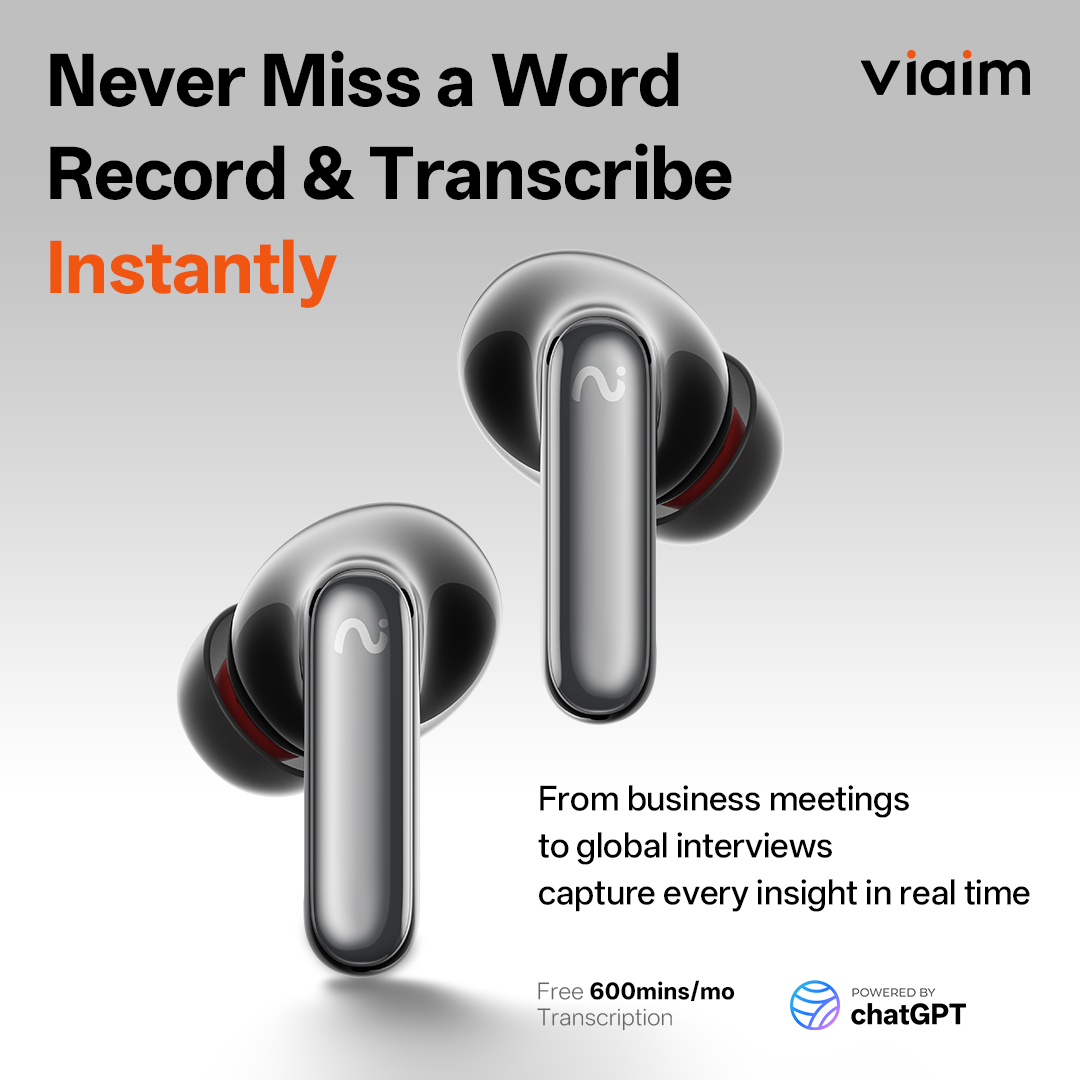
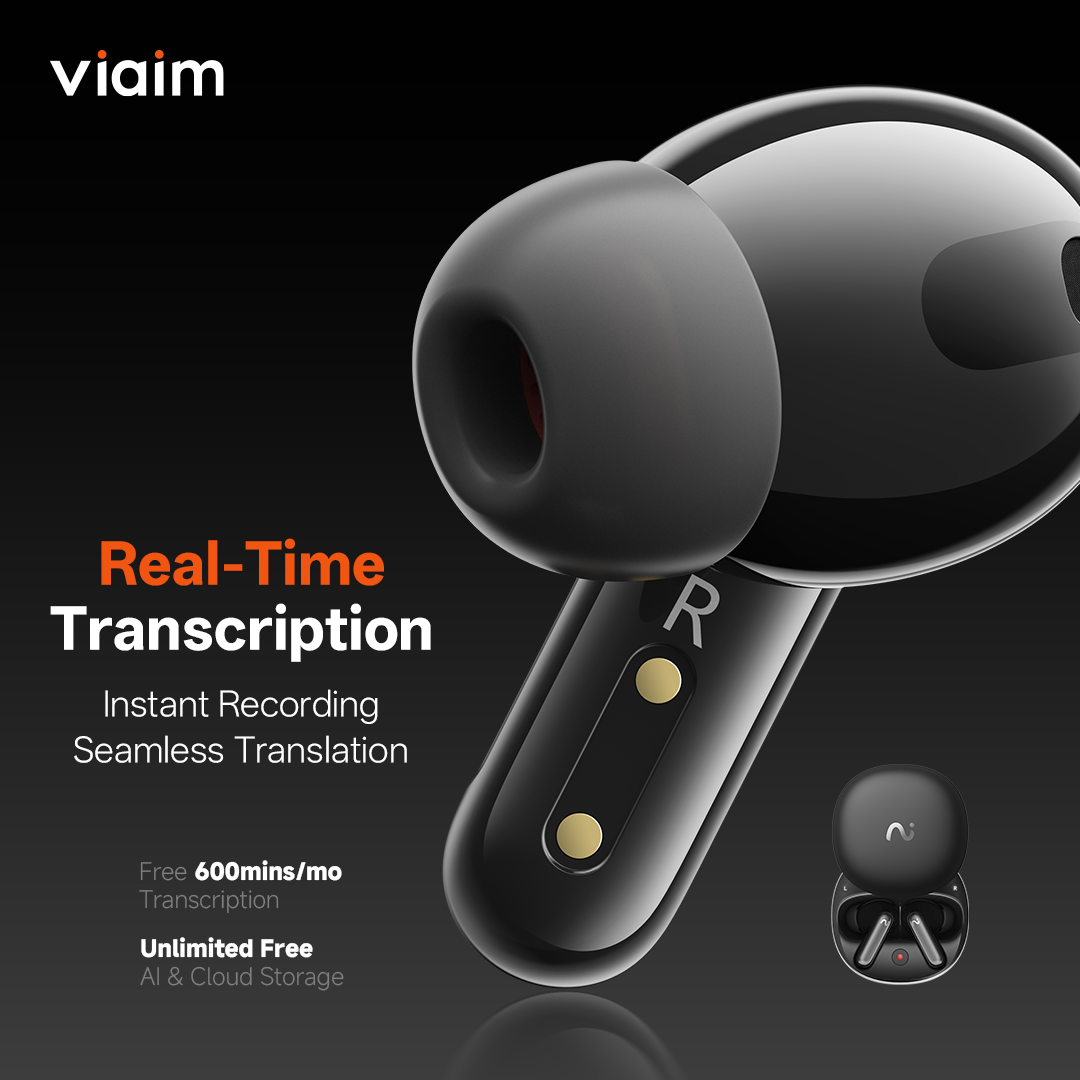
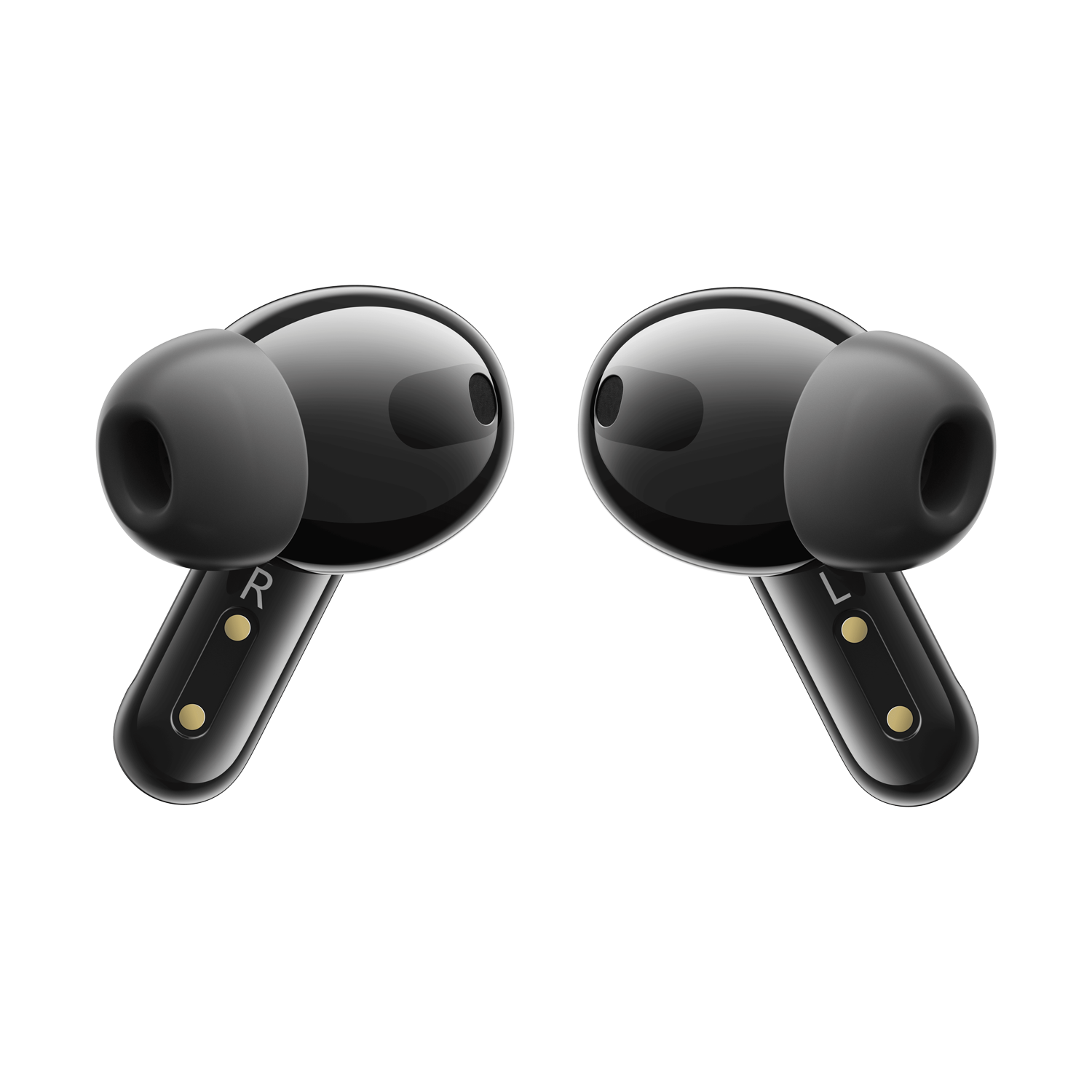
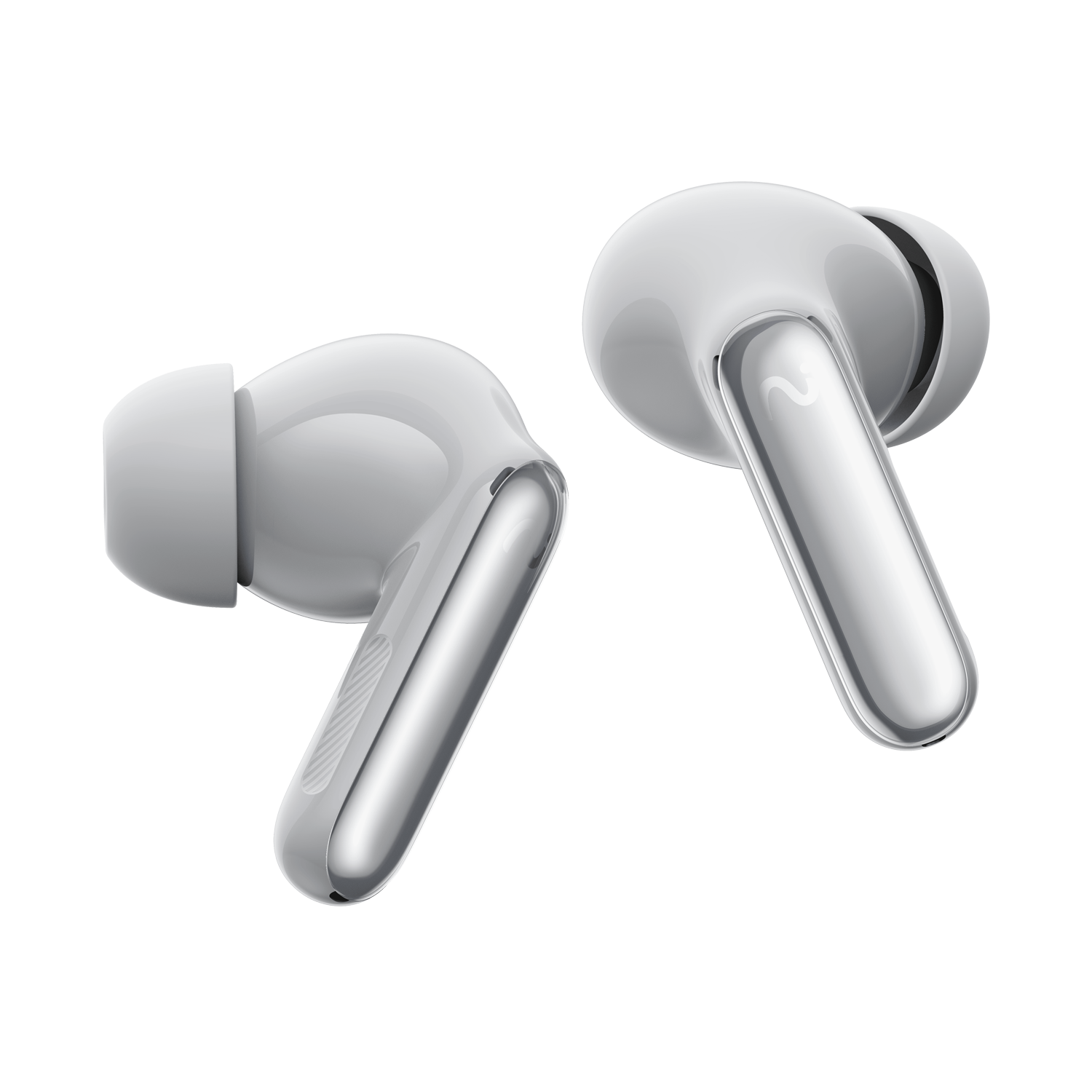
In-ear design.
Made for work and everyday listening.

Sound

Hi-Res audio

An 11mm dynamic driver for the things you love listening to.

Focus

Active noise cancellation

Reduce surrounding noise while you listen.

Everyday fit

4.8g

Per earbud. A small part of your everyday setup.

Battery

Up to 36hrs

Total with the case. Up to 9 hours on one earbud charge.

Battery life varies with settings and use. Hi-Res codec support depends on the connected device. ANC describes listening performance, not recording quality.

Our story

Vision

Stay present in the conversation. Keep the details that matter.

VIAIM earbuds capturing an everyday conversation

Journey

From a spoken idea to a readable transcript. Make every conversation easier to revisit.

A recording transformed into a readable transcript

Promise

Bring your notes, summaries, and next steps together, so you can move forward with clarity.

Organized AI summaries and conversation notes

FlashRecord - The RecDot difference

Two ways to capture.
One less thing to think about.

A client's exact words. An important decision. An idea you don't want to lose.
Start recording from your earbuds or charging case, and stay with the conversation.

From your earbuds.

Keep the conversation flowing. Start recording from the earbuds you're already wearing.

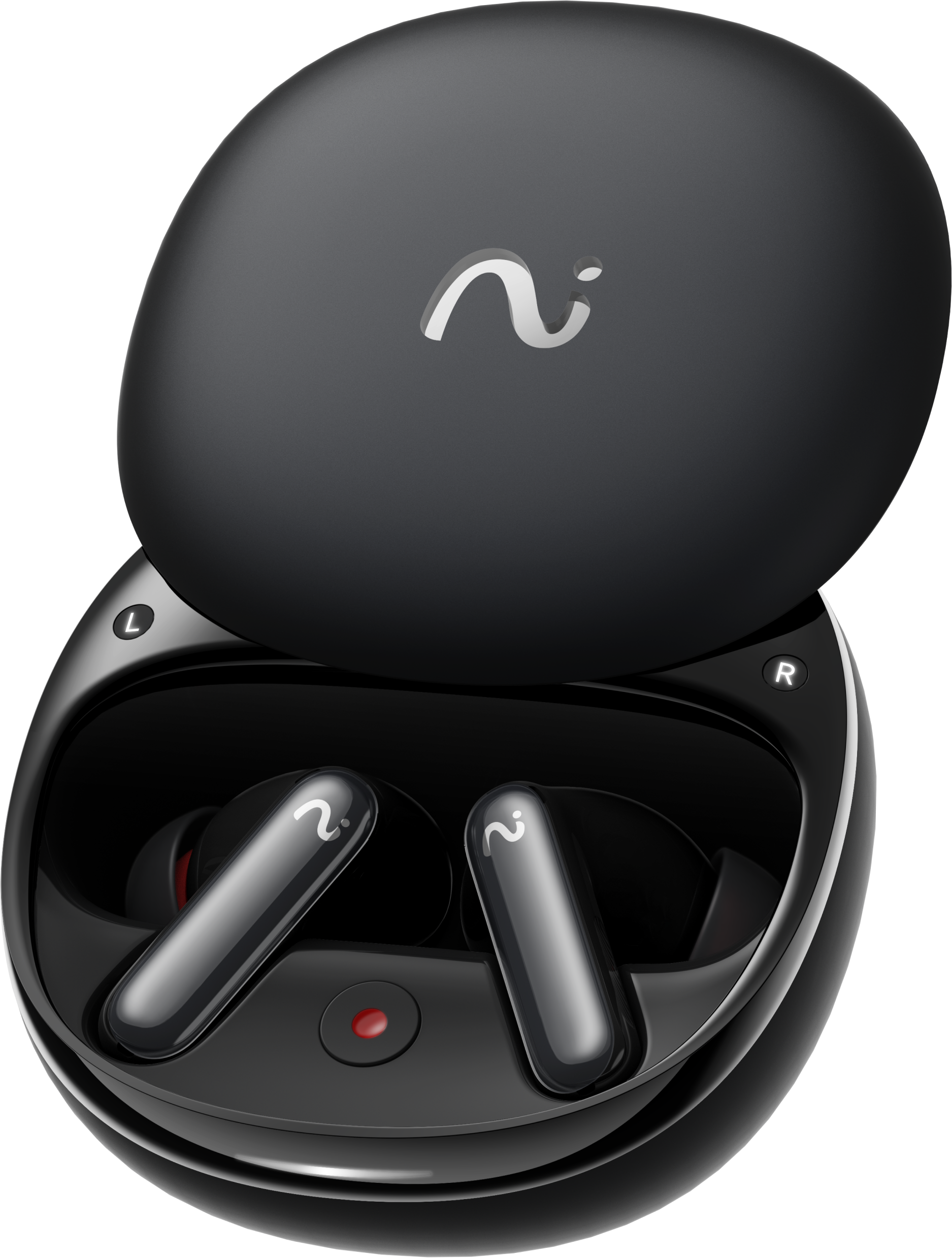
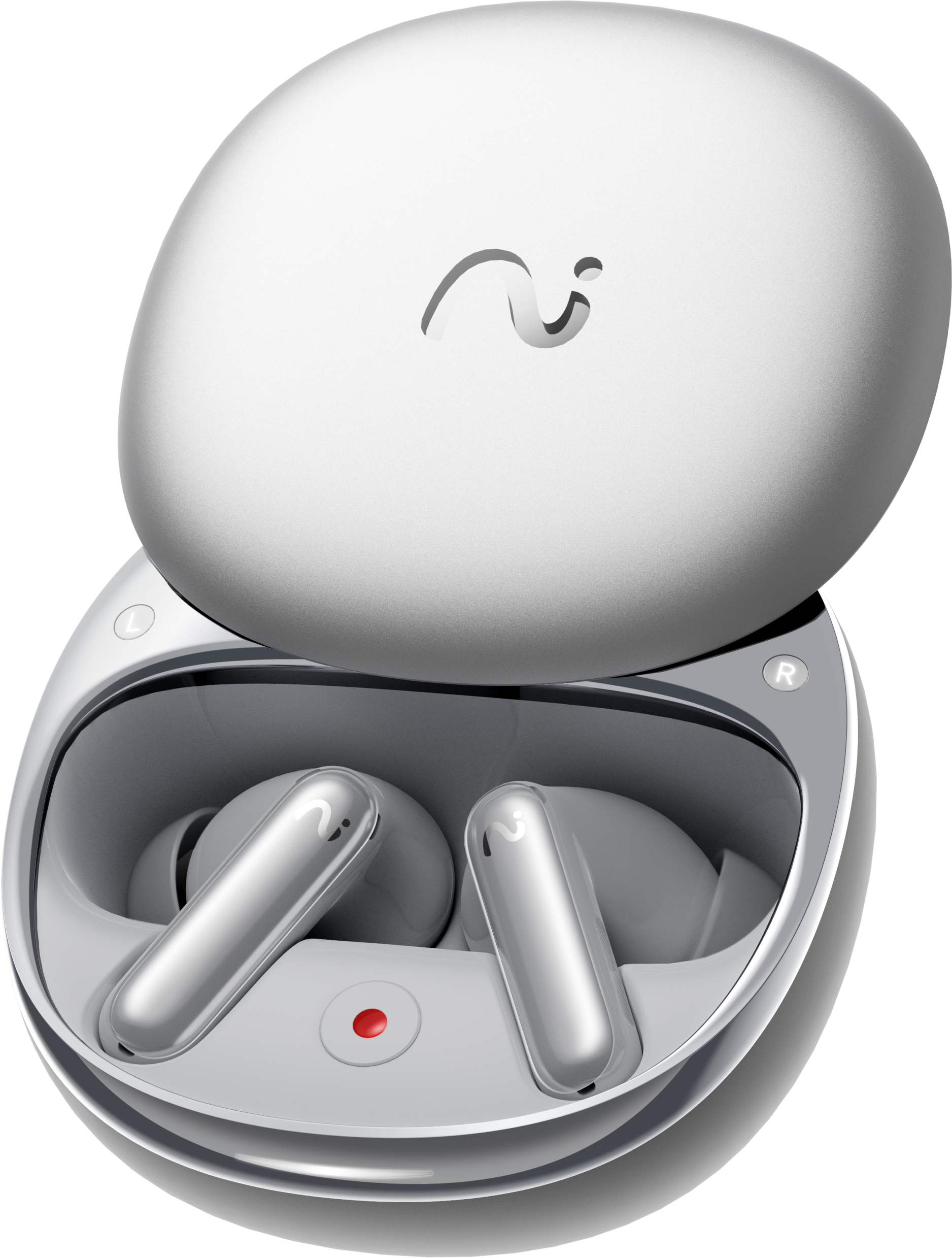
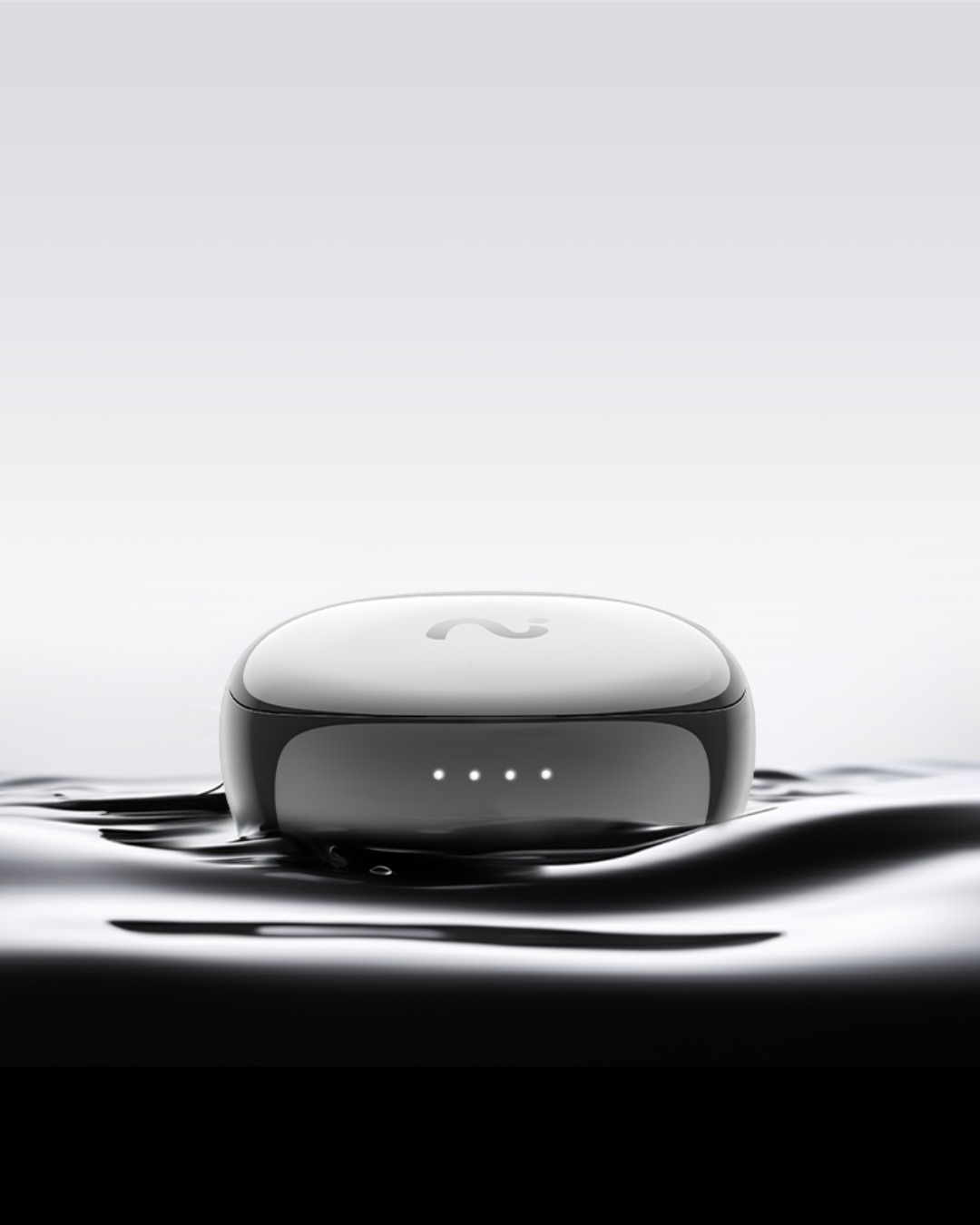
From your charging case.

Put RecDot on the table. Capture the discussion directly from the case.

Recording mode and connection requirements apply. Recording notifications are enabled by default and can be customized.

How FlashRecord works

Miss Nothing

One-tap to capture your conversations. Phone calls, meetings, online video / audio play, with no phone requires.

Miss Nothing

Choose your starting point

Use your earbuds for calls, or place the charging case on the table for a meeting. Choose the recording mode and connection for your source.

Capture the conversation

Start recording with RecDot and stay with the conversation. Recording notifications are enabled by default and can be customized.

Return to the details

Bring your recording into viaim to review the conversation and continue your workflow. Recording mode and connection requirements apply.

One connected viaim AI workflow

Every conversation
becomes work
you can use.

Find what was said. See what matters. Keep the context. Bring useful notes into your next step.

01 / Capture

Never stop
to take notes.

Calls, meetings, and ideas don't happen in one place. Bring them into one recording workflow.

Capture phone and internet calls with RecDot. Keep your attention on the person, then return to the details afterward.

✓
Your recording. Your control.Recording notifications are enabled by default and can be customized.

Customize recording notifications

Your recording.
Your control.

Recording notifications are enabled by default. Review the available options in the viaim app and choose the setup for your recording mode.

Workflow at a glance

Open viaim
Review notifications
Check your setup

Open your device settings

Connect RecDot and open its settings in the viaim app.

Review notification options

Find the recording notification options and adjust the available settings for your device. Labels and options may vary by app version and recording mode.

Check before you record

Check your selected settings before your next call or meeting. Follow the recording and consent requirements that apply to your conversation.

Follow applicable recording and consent requirements. Recording mode, device connection, and platform support apply.

Upload image, GIF, or video

02 / Make Sense

Know what matters.
Not just what was said.

Go from a conversation to searchable text, a structured summary, and the next steps worth keeping.

Upload image, GIF, or video
viaim app - transcript

03 / Remember

Turn conversations into
memory you can ask.

One meeting is useful. Bring related meetings, recordings, and files together, and keep the context ready for your next question.
Upload image, GIF, or video

Spaces

Everything that belongs
together, together.

Create a Space for a client, project, or topic. Keep its conversations and files in one place.

Explore Spaces

A place for every
side of the story.

Keep a client's meetings, recordings, and files together. A Space gives related conversations a shared home, so your next question starts with context.

Workflow at a glance

Client Space
Meetings + files
Shared context

Start with a client or project

Create a Space around the way you work: a client, a project, or an ongoing topic.

Bring the context together

Add related conversations and files to the same Space. Keep the source material together as the work develops.

Pick up where you left off

Return before your next meeting to review the context. Bring the relevant recordings and files into your conversation with Vitana.

Upload image, GIF, or video

Ask Vitana

Your work has context.
Now your questions can, too.

Ask about the recordings and files you bring into the conversation. Find details without rereading every note.

Meet Ask Vitana

Ask a question.
Keep the context.

Work with the recordings and files you bring into the conversation. Ask Vitana about the details that matter for your next step.

Workflow at a glance

Recordings + files
Your question
Context for your next step

Bring in the right material

Choose the recordings and files relevant to your question. Bring together the context you want Vitana to work with.

Ask about your work

Try: What objections has this client raised so far? Or ask which points to follow up on before your next meeting.

Use the answer to move forward

Use the response to prepare a follow-up or revisit an important detail. Review the original material when you need to confirm something.

A question to bring to your client space

"What objections has this client raised so far?"
Related conversations External files Project context

04 / Move Forward

Your notes should not
stay in the app.

Share the useful part. Review it on a bigger screen. Bring your notes into the tools where work continues.

Upload App + Web image, GIF, or video
Capture with RecDot. Review on your phone. Continue on the web.
Upload Export image, GIF, or video

Send what's useful.

Audio, transcripts, summaries, and mind maps. Choose the output your next step needs.

Share & export

Take meeting content out of the recording and into a format you can share.

Explore sharing & export

The useful part.
Ready to go.

Take the conversation into the format your next step needs. Share meeting content or export it for the people and tools you work with.

The useful part.
Ready to go.

Open the conversation

Start with the recording or meeting content you want to use.

Choose what is useful

Select from the available audio, transcript, summary, or mind map outputs. Available options depend on the content and your plan.

Carry it into your next step

Use the available sharing or export options to bring the useful part into a follow-up, a document, or a team discussion.

Work across App + Web

Find, organize, and edit your notes in the workspace that fits the moment.

Explore App + Web

From your phone.
To your bigger picture.

Capture with RecDot. Review on your phone. Continue on the web in the workspace that fits the moment.

Workflow at a glance

RecDot
viaim app
viaim web

Capture where work happens

Use RecDot for the conversations you want to revisit.

Review on your phone

Open viaim to find and review your recordings and notes while you are on the move.

Continue on a bigger screen

Use the web workspace to organize and edit your notes at your desk. Available features can differ between app and web.

Connect via Zapier

Explore supported connections to the tools you already use.

Explore Zapier connections

Connect your notes
to what comes next.

Explore supported connections between viaim and the tools you already use through Zapier.

Workflow at a glance

viaim
Zapier
Your connected tools

Find a supported connection

Review the viaim triggers and actions currently available in Zapier.

Choose your next action

Connect your accounts and choose a supported destination and action for your workflow.

Check the workflow

Test with sample content before using the connection for ongoing work. Availability depends on the integration and your connected services.

Built around trust

Your conversations
stay yours.

Understand how your conversations, notes, and work context are protected, and control how you record.

Read the privacy policy
Security credentials shown on the current RecDot product page.