

📋 Table of Contents
You can choose to transcribe while recording to see the text in real time, or after recording once it's finished.
Currently, we support transcription and translation for 78 languages (up to 145 language variants).
How to Use Transcription
Transcribe While Recording
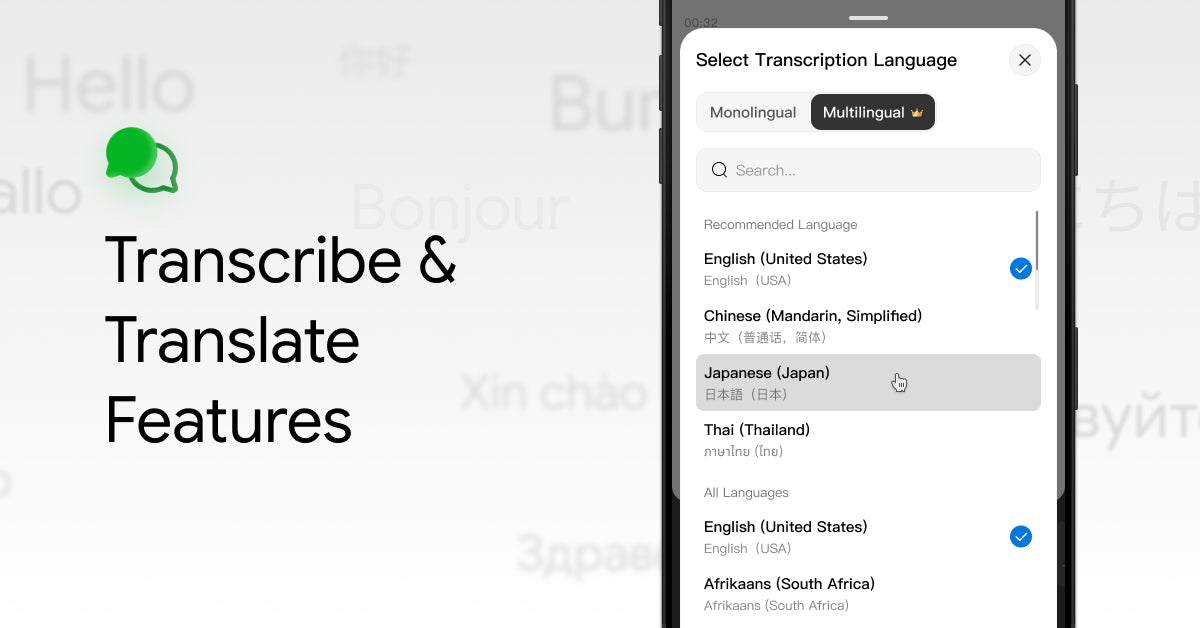
After starting a recording, if Real-time Transcription is enabled in Settings, tap the lower-left corner of the recording page to select the language(s) of the content.
You can choose up to three languages at the same time.

Tap the button at the bottom to select features such as Translation, Speaker Identification, and Live Text.

Transcribe After Recording

If Real-time Transcription is turned off in Settings, or if you recorded using the Flash Record feature, you can transcribe the recording after it has finished.
Similarly, you can select the language(s) for transcription based on your needs, supporting up to three languages at once.
How to Use Translation Feature
You can use the translation feature in multiple scenarios, including online meetings, phone calls, in-person interviews, and audio or video recordings.
If the content you record is in a language you don't understand (for example, English), the system can translate it into your selected language (such as Japanese).
Translation can be done during the recording to help you follow the conversation, or after the recording ends based on your needs.
Applicable Modes
- Call Recording
- Live Recording
- Audio & Video Recording
Translation While Recording

- Once the recording begins, tap the Transcription Language button at the bottom and select the source language (e.g., English).
- Tap the Translate button and select the language you want the text translated into (e.g., Chinese).
- You can now view the translated content in your target language directly on your phone screen.
⚠️ Please note that viaim offers real-time assisted translation features designed to provide one-way translation support. You can view translated text or listen to translated audio as assistance.
However, it does NOT support two-way real-time translation for face-to-face conversations, nor does it support two-way voice translation during phone calls.
Translation After Recording
In addition to translating while recording, you can also choose to translate after the recording has finished.
After translation, the original transcript and the translated text are displayed together, allowing you to easily compare and follow the content side by side.
Transcription and Translation Languages
Currently, we support 78 language varieties, and if dialects and regional variants are included, the total number of supported varieties reaches 145.
(See full language list on the Language Support page)



Share:
How to Connect Your viaim Earbuds?
How to Record Meetings, Calls & Ideas with viaim Earbuds