

The best AI note taker for hybrid meetings is the one that can hear both sides of your particular room. If five people sit around a table and three join remotely, an accurate transcript of the remote speakers still leaves a gap if the people at the far end of the table never made it into the audio. Start by deciding how room voices enter the meeting, then pick the capture and note-taking tool.
Best AI note taker for hybrid meetings by room setup
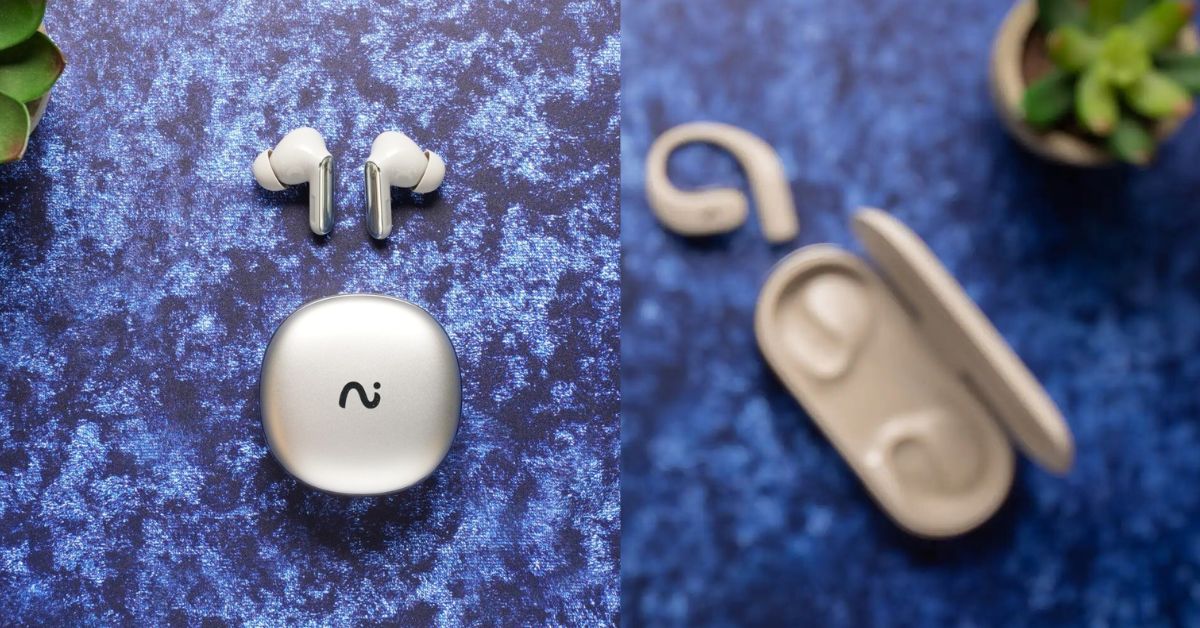
Pick viaim NoteKit for a small room running the meeting from one Windows or Mac laptop. It captures computer audio and nearby voices, so you can turn the remote discussion and the conversation at the table into a transcript and action items. If your conference room already has its own microphone and meeting system, start with the platform's recording or transcription. For a session that moves between tables or locations, consider a wearable for the local conversation and keep separate notes for each group.
| Setup | Best starting choice | What you gain and what to check |
|---|---|---|
| One laptop and a few people | viaim NoteKit | Computer audio and nearby voices for AI notes. Test the farthest seat and the remote voice. |
| Shared conference-room system | Built-in Teams or Zoom recording or transcription, where available | A shared meeting record. Check that the room microphone reaches the call and who can open the result. |
| Workshop with breakout tables | One note taker per group. Consider viaim OpenNote for a facilitator moving between conversations. | Keep each group's input identifiable. Record the remote group separately if needed. |
| Customer hosts the meeting | Host's recording or a shared written recap | Clear ownership and a record both teams can access. |
| Screen share is part of the decision | Platform video recording plus a link to the shared artifact | Audio notes plus the visual reference. Check that playback shows what the decision refers to. |
These recommendations are based on audio routing, the record you need to keep, and who needs access. Use the room test below to see how each option performs in your setup.
1. One laptop and a few people around a table
Use a single, tested audio path in a small room. If the laptop provides the microphone and speaker, put it where people can speak toward it without crowding around the screen. Ask one person to sit in the farthest chair and read a short sentence while a remote coworker reads a different one. Replay both. A clean result at the seat nearest the laptop tells you very little about the far chair.
viaim NoteKit is the strongest fit here when you want AI notes from both sides of the discussion. Connect it over USB, activate the viaim desktop app, and run the call on that laptop. NoteKit captures the computer audio from the call and picks up people speaking near the laptop. Review both sources in the transcript before turning the summary into tasks. This setup works without wearing earbuds.
Choose a platform video recording instead if the finished record needs to show slides or a cursor. In a larger room, prioritize a microphone that reliably hears everyone. If the far seat is missing from your test recording, move the laptop or use the room's microphone and the platform's built-in capture.
Example: A designer and product lead sit with a laptop while an engineer joins remotely. The engineer confirms Friday delivery, but the lead in the room adds a dependency in a quieter voice. The transcript is usable only if both statements survive. In your test, use one sentence from each side with a date and a named owner. Ask the remote person to play back what they heard live, then compare that account with the recording. It distinguishes an audio problem at the table from a capture problem on the laptop.
2. A conference room with its own microphone and speaker
Start with the room microphone and the meeting platform's built-in recording or transcription when the remote attendees already hear the table clearly. If a team is comparing a meeting bot with built-in capture, first check what the remote attendees hear. Both depend on the room sending usable audio into the call. Choose a bot only if it meets a need such as routing summaries to an existing team workflow and the host allows it. Let participants who join on laptops for chat or screen sharing mute their microphones and speakers unless their laptop is the designated audio device. Multiple live devices close together can create feedback and make it harder to tell which microphone picked up a comment.
A room endpoint can represent several people on one audio feed. If a notes tool labels the entire conversation with the room name, the label cannot tell you who volunteered to do something. For important commitments, have the facilitator repeat the owner and due date out loud and get verbal confirmation. Keep a brief human decision log alongside the recording, especially when several voices sound similar or people interrupt each other.
Native recording is a strong starting point when the organization already knows where recordings go and who is allowed to view them. Microsoft documents that Teams meeting recordings are stored in OneDrive for work or school or SharePoint. Zoom distinguishes computer and cloud recordings. Those paths have different ownership and sharing implications. Before choosing a tool, ask the organizer to show what a colleague outside the room can actually open. See the Teams recording documentation and the Zoom recording overview.
3. A workshop where people split into small groups
Give each group its own note taker and use the meeting platform for the shared debrief. A facilitator who moves between tables can use viaim OpenNote to keep an ear on the room and capture a nearby discussion or a short recap. Its open-ear fit suits a facilitator who needs to hear questions while walking between groups. It covers the conversation you're near, so assign a separate note taker to the remote breakout. A room-wide audio track from three tables talking at the same time is a poor place to look for the exact origin of an idea. Ask each group to name a reporter and write down one recommendation, one reason, and one unresolved question. During the debrief, invite remote contributors to report under the same format.
For example, one table might recommend moving a release review to Thursday because it needs a full day for changes, while a remote group might prefer Friday to wait for customer feedback. Capture the reasoning under separate headings. At the end, record which day the group actually agreed on, who will update the invite, and what remains conditional. An AI summary can help organize the plenary into a readable draft. The group notes preserve contributions from conversations the plenary recorder never heard.
A handheld recorder can make sense for a single, clearly bounded table discussion. It adds a separate file to name, store, and review, and it cannot automatically supply context from a separate remote group. For workshops that mostly need decisions and deliverables, the written template may be the simplest way to preserve what mattered.
4. A customer meeting where someone else owns the invite
Use the host's meeting recorder if both teams need playback. If the goal is to confirm next steps, start with a shared recap. Agree on which record the host will provide before the meeting starts. If the customer will share a recording, confirm whether your team gets a copy, a view-only link, or only a written recap. If the customer declines recording, use written notes and read back decisions near the end. Treat a disabled recording control as a signal to check with the organizer or your own admin.
A shared recap is often enough when the purpose of the meeting is to decide what happens next. For a pilot kickoff, you might send three lines: the customer will name two test users by Tuesday, your team will send setup instructions Wednesday, and the evaluation criteria are still open. Give the customer a chance to correct the recap before distributing it more widely. That preserves the distinction between a commitment and something merely suggested during the call.
5. A meeting where the screen is part of the evidence
Preserve visual context when the decision depends on what someone showed. During a budget review or design critique, audio like “the third row is the one we approved” cannot identify the row after the spreadsheet changes. Use the platform's video recording and check that the shared screen appears in playback. A transcript can tell you when the decision came up. The recording or linked artifact shows what the group was looking at. If the visual artifact cannot be recorded, link the version the group reviewed and name the tab, row, slide, or design frame in the notes.
Pick a playback test with a specific visual cue. Share two nearly identical slides, advance to the second, and ask the reviewer to find the moment the decision changed. If the reviewer can hear the discussion but cannot identify the slide, improve the notes or capture setup. Where a recording includes confidential content, verify who can see the original and give broader audiences a short summary they are allowed to see instead of distributing the raw file.
Run a five-minute room test before you buy
Use a short rehearsal with an actual attendee, one remote colleague, and the same devices you expect to use on the day. Run the steps below once before rolling a setup out across rooms, and repeat the audio check whenever a microphone or meeting location changes.
- Say the meeting title at the beginning so you can identify the playback later.
- Have the nearest and farthest people in the room state different names and dates at normal speaking volume.
- Ask the remote colleague to respond, then share a slide if visual context matters.
- Review the recording on a second device and check that the notes preserve each detail and its owner.
- Open the shared file as a permitted viewer. Confirm what they can access and who can change or remove that access.
Write down the failure before changing the tool. If the far seat is missing live and on playback, move the microphone or change the room layout. If everyone is audible live but the remote voice is absent from playback, check the capture route. If the audio is clear but the owner is wrong in the summary, check the transcript and ask the facilitator to close the loop verbally. Those are three different problems and require different fixes.
Before you record and share
Get permission and set expectations before recording begins. Recording consent rules vary by state and country, and your workplace or customer may have additional requirements. Tell participants what will be captured, why, and who will receive it. If you cannot obtain the required consent, use written notes. For recorded meetings, confirm access before sharing a recording or transcript and verify names, dates, decisions, and unresolved points before forwarding an AI summary.
Which setup should you buy?
Choose NoteKit if a Windows or Mac laptop runs your hybrid meetings and you need transcripts and action items that reflect both the remote call and the people nearby. Choose OpenNote if most of your note-taking happens while walking a room, guiding a small group, or moving between conversations. If the room already has a reliable audio system and your team only needs shared playback or a basic transcript, try your platform's built-in tools first.
For personal calls and focused listening, RecDot is the in-ear option with active noise cancellation. See the open-ear versus in-ear note-taking comparison if that's the decision you're making.
If the single-laptop setup sounds like yours, see NoteKit compatibility and setup. Use the five-minute test with your actual room and meeting app before relying on any recorder for a live discussion.
Frequently asked questions
Can a meeting bot hear people sitting in the room?
A tool that receives the platform's meeting audio can only work with the audio the meeting actually receives. Ask a remote participant to confirm they hear the farthest seat, then check playback. If they cannot hear the speaker live, fix the room input before relying on the transcript.
Do I need a dedicated AI note taker for hybrid meetings?
Use the simplest option that produces the record you need. Native recording plus a short human action log can work when everyone is audible and there are few deliverables. A dedicated audio-to-notes tool makes more sense when you repeatedly need searchable notes and can validate both audio inputs and the review process.
How do I capture speaker names when the room shares one microphone?
Ask people to identify themselves before consequential remarks and repeat the owner when assigning an action. A shared microphone does not give you a separate device identity for every person in the room. Correct names and responsibilities in the final notes while the meeting is fresh.
What should I do when the recorder misses one side of the call?
Recover the missing points from the participant or facilitator and mark them as confirmed after the meeting. For the next session, reproduce the setup and test local and remote voices separately. If neither setup captures both sides reliably, designate a note taker and read decisions back at the end.
For adjacent setups, see the guide to AI note takers for online meetings when everyone joins remotely, or the meeting headphones buyer's guide if the main issue is one person's listening or capture setup.

Share:
How to Remember Every Buyer Preference After a Day of Showings
Best Tech Gifts for People Who Live in Meetings (2026 Guide)